


If you want to read the Photo Safari for Kids Comic, click the picture.
The comic contains photography ideas for kids and their families.
 The rest of this page focuses on applications of digital photography in teaching and learning. When basic literacies are combined with technology tools and authentic assignments that require high level thinking, they become powerful literacies that lead to information and communication fluency and the love of learning. Don't just take pictures, become a photographer! A photographer is an artist who constructs a visual message. Like providing a child with a pencil or keyboard for written communication, young people use cameras to create visual communications.
 In this workshop, we'll learn to compose quality photographs, explore learner-friendly photo editing software, create engaging projects that go beyond the standards and promote authentic learning experiences. Choose from dozens of practical projects ideas across the curriculum. Let's address individual differences and bring the joy of learning back to the classroom!
Use your digital cameras to promote powerful literacies, inquiry, and technology-enhanced learning.
 Read Owen & Mzee: The True Story of a Remarkable Friendship by Isabella Hatkoff, Craig Hatkoff, and Dr. Paula Kahumbu. Find the "real story" online. It tells the story of a friendship between two animals. What can you find out about their relationship?
You don't need lots of photos, instead think about a few images that can tell a story.
Watch Declaration of Independence (SWF). It's a great product promotion that just uses photos, text, and computer-generated music. This was created in Flash, but could also be done in Photo Story.
Create your own story in photos. Download Photo Story 3 for Windows from Microsoft. Create a simple story using 3-5 photos with narration and background music. If you need ideas or help using the software, use the Directions for Photostory for Windows (PDF) handout by Annette Lamb. You can also use iPhoto for Mac.
 Identify "scraps" that can be photographed for an electronic scrapbook including family photos for family scrapbooks or science experiment photos for science scrapbooks.
Use arrows, call-outs (speech bubbles), and boxes to highlight text and draw attention.
It's not always possible to take your own photographs, so seek out online sources for images.
For ideas, go to A Very Old Place blog by Nancy Bosch.
General Store
Kitchen Images
Visual Resources
Explore the sources of images above. Then, Create a 3-5 slide "starter" for young people.
Use the call-out bubbles in PowerPoint to create photo comics.
Right-click and save one of the following photos. Insert it into PowerPoint. Choose AutoShapes from your Drawing tools and choose a call-out bubble. Type in the bubble.


Create your own puzzles and games using photos.
 Idea 4: Online Image Tools
There are many websites that provide fun tools to enhance photographs or create fun projects. Explore a few fun options:
Use photos to generate questions or as the basis for writing projects. For instance, show microscopic images. What's the image? Go to Elephants. What are your questions?

Start with images of animal homes and write about who might live in these places.
Create photo mysteries. For instance, cover part of a photograph and guess what is happening.
Create simple, interactive activities and starters in PowerPoint. To save the starter project, right click on the words Who Lives Here (PPT), then choose Save Target As. Notice where the file is being saved. Use the slide show mode to run the presentation. Follow the directions in the SpeakerNotes in the presentation to create your own project. Try combining images together. For example, go outside and take a picture of a bush, then add a bunny to this photo to place the bunny in a context. Need animals? Use the backyard.ppt.
Create photo math mysteries. Set up a situation in a photograph, then ask students to solve the math problem. You may wish to use audio to explain the problem. You could also ask students to draw lines or make circles on the photo. Create a place for the answer. Hide the answer behind an answer button or create an audio button for the answer. Save the PowerPoint starter called math mystery (PPT). For older students, you can call these "CSI Crime Scene" photos.
Many young people have collections. Create a photo collection. Or, create a photo collection for a particular topic or subject area. Collect photos of historical buildings, historical figures, events, or artifacts.
Take photos on class field trips and create slide shows, scrapbooks, or photo comics.
Rather than just "practicing letter writing," let's apply the technique of postcard or letterwriting to a meaningful communication. Students might use the letter to describe or persuade. In addition, let's involve multiple intelligences and channels of communication through the use of text, images, sound, and motion.
Check out Flat Stanley postcards.
Make letter and postcard writing come alive with digital photographs. Read books with a focus on letters or postcards. Then, design an assignment that involves digital photographs and postcard or letter writing. The following three books will get you started:


Explore the following examples of WebQuests that incorporate letter or postcard writing.
Let's use the Postcard Creator to make our own Postcard! We'll take a digital photograph that will be used on one side. The computer will create the information for the other side. Print it out. Cut out the photograph and the postcard you created. Then, glue them to a piece of cardstock or construction paper. Go to Postcard Creator lessons for more ideas. Go to the PBS Postcards and Letters for links to other resources.
You can also create Postcards in PowerPoint. Right click on postcard.ppt, then choose Save Target As. Open the file. Put a photo on the first slide. Then, complete the back side on the second slide. Print two slides per page and fold to make your post card.
Use the Letter Generator to make your own Letter! Paste a photo into your letter. Go to Letter Generator lessons for more ideas.
Examine your standards. Can you think of ways to incorporate photographs in teaching and learning. Can students share their understanding through a photo?
Use graphics software to enhance your photographs. Although many software packages such as Adobe PhotoShop, Adobe Elements, and Adobe Macromedia Fireworks can be used for editing photos, consider an open source software package you can use for free!
Go to the GIMP website and download the software (Installer software to download) - Download a tutorial (PDF) or (Word). Download the GIMP for Photo Editing (PDF) handout by Annette Lamb. Follow the directions to crop, resize, and adjust brightness/contrast/color.
 Check out some student projects: Black Background, Flying Toaster.
Learn PowerPoint tools while applying math skills. Check out Mr. Hartman's editing tool (PPT) activity.
 Use your photograph as a watermark. For example, place a watermark of an animal on the page, then write your poem or report on top.
Click the Heron on the right. Then, save the large heron on your hard drive. Open Word and insert the Heron photo. Use the Picture Toolbar and Image Control button to make a Watermark. Then use the Text Wrapping tool to send it behind the text.
Students have a difficult time with maps. However by overlapping maps with photos, students can start seeing the relationship. For example, in the Make Way for Real Ducklings aerial photos from Google Earth were used.
Go to Google Earth. Download the free version of the software. Explore the world. Brainstorm ways that aerial photographs can be used in understanding abstract concepts.
 Let's get a little "artsy fartsy" for a moment. Like writing a beautiful poem or an award winning short story, creating an effective visual message takes practice and a specific set of skills and techniques. It also requires an artist's eye and the right subject.
Explore examples of some of these techniques.
Now, try them out. Since digital photos are free, take zillions!
Try something simple. Pick an every day object and see how many versions you can find. For example, how many doors can you find inside and outside the school? Take photographs of these doors. If you need more ideas, check out the Photo Gallery of Doors. Also, check out Simple Machines, Many Views of Spiders.
 When you shop for a camera, you'll find lots of choices. You need to decide if you want portable, powerful, professional, or practical. What meets your needs?
Be sure to look for the following features: compact vs. SLR, image stabilization, quality, movie and audio, storage cards, viewfinder, and zoom.
I've had the best luck with Sony, Canon, and Nikon, but there are many other choices. Look at both features and price.
Also think about how your camera will be stored. If you're working with kids, think about a softside lunchbag with the school logo. Also remember the need for battery recharging and extra memory cards.
If you want more information about selecting and using digital cameras, go to High Tech Learning: Digital Cameras.
Work toward bridging the inside and outside world with a series of activities that look at the fact and fiction of the natural world. Along the way, address information skills associated with fact and opinion, fiction and nonfiction, and real and pretend situations.
 Connect math and science activities to nature themes. Also make connections between fact/fiction and real/pretend. Many picture books contain unrealistic views of the world. Help students see the difference between fact and fiction.
Read Starry Safari by Linda Ashman with illustrations by Jeff Mack. Choose an illustration from the Jeff Mack art gallery. How does this illustration look like and unlike the real animal? Create a PowerPoint document containing options for students along with photos that could be used for comparison. Select websites that could be used to gather information. You could do this activity with photos from many different illustrators.
Explore predictable books by Valeria Petrone including Way Far Away on a Wild Safari.


Watch a video about Jan Brett's safari and her inspiration for Honey... Honey.. Lion!
Let's go on a schoolyard safari. What creatures can be found in and around our school? What do you see on your adventure? Let's explore our community! Create an electronic scrapbook in PowerPoint showing the "signs of nature" found on the school grounds. Think about how this scrapbook could be expanded through the school year. Use some of the following techniques:
Create sounds to narrate photographs.
Use bubbles to highlight features in the photos.
Use the Speakernotes to provide background information.
Consider a theme such as
Signs of Life
Snapshots of Nature
Scrapbooking the Seasons
Our Nature Alphabet Scrapbook
Our Green Spaces
Outside and Alive
I Spy Nature
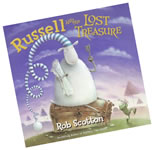 The picture book Russell and the Lost Treasure by Rob Scotton focuses on the role of photographs in reading experiences. It's a perfect opportunity to get out the digital camera. Then, create memories and share understandings through digital photographs.
Looking for more ideas? Check out the Digital Photography Wiki. Please add your ideas!

